FLAC to MP3 Converter & Fake-FLAC Spectral Checker
Audit lossless audio authenticity with an 80-slice FFT spectrogram, then convert FLAC or WAV to 128–320 kbps LAME MP3 or 16-bit PCM WAV locally inside your browser—with resampling and zero uploads.
Ready · Drop any lossless FLAC or WAV file to verify its spectrum and convert locally to MP3 or WAV.
20.0 kHz
LAME 320 kbps MP3 applies a ~20 kHz low-pass shelf—ideal for portable playback from verified FLAC, preserving crisp transients at ~2.4 MB/min.
Ready to encode locally via OfflineAudioContext resampling + lamejs MP3 encoder and uncompressed 16-bit WAV.
0 uploads — encoding happens inside your browser tab. FLAC decoding, sample-rate conversion, FFT inspection, and lamejs MP3 output run locally in RAM. See bitrate sizing & privacy proof ↓
ACT I · CLIENT-SIDE TRANSCODING ENGINE
How Browser-Local FLAC to MP3 Encoding Works
Converting bulky 40 MB lossless FLAC archives into universally playable 320 kbps MP3 files normally meant uploading your music library to ad-heavy cloud queues or installing desktop FFmpeg wrappers. AIAC executes the entire mastering-grade conversion chain right inside your browser tab—with zero bandwidth waste and zero file limits.
First, your file's raw STREAMINFO header and 80-slice FFT spectrum are inspected so you never waste time re-encoding a disguised 128 kbps Fake-FLAC. Next, if you downsample a 96 kHz or 48 kHz studio master to 44,100 Hz, the browser's native OfflineAudioContext applies clean band-limited resampling before lamejs encodes genuine CBR MP3 frames alongside an optional 16-bit PCM WAV download.
FLAC PCM (16/24-bit) → Spectral QC → OfflineAudioContext → lamejs MP3 + 16-bit WAV
128 / 192 / 256 / 320 kbps CBR · 44.1 / 48 kHz resample · Stereo or Mono downmix · Zero upload
ACT II · BITRATE, BANDWIDTH & STORAGE TRADE-OFFS
MP3 Bitrate & Frequency Bandwidth Scale
Every MP3 bitrate balances storage footprint against high-frequency extension and transient transparency. Click any export profile below to inspect its spectral signature in the converter above.
ACT III · AVOID DOUBLE LOSSY GENERATION LOSS
Why You Should Verify FLAC Before Converting to MP3
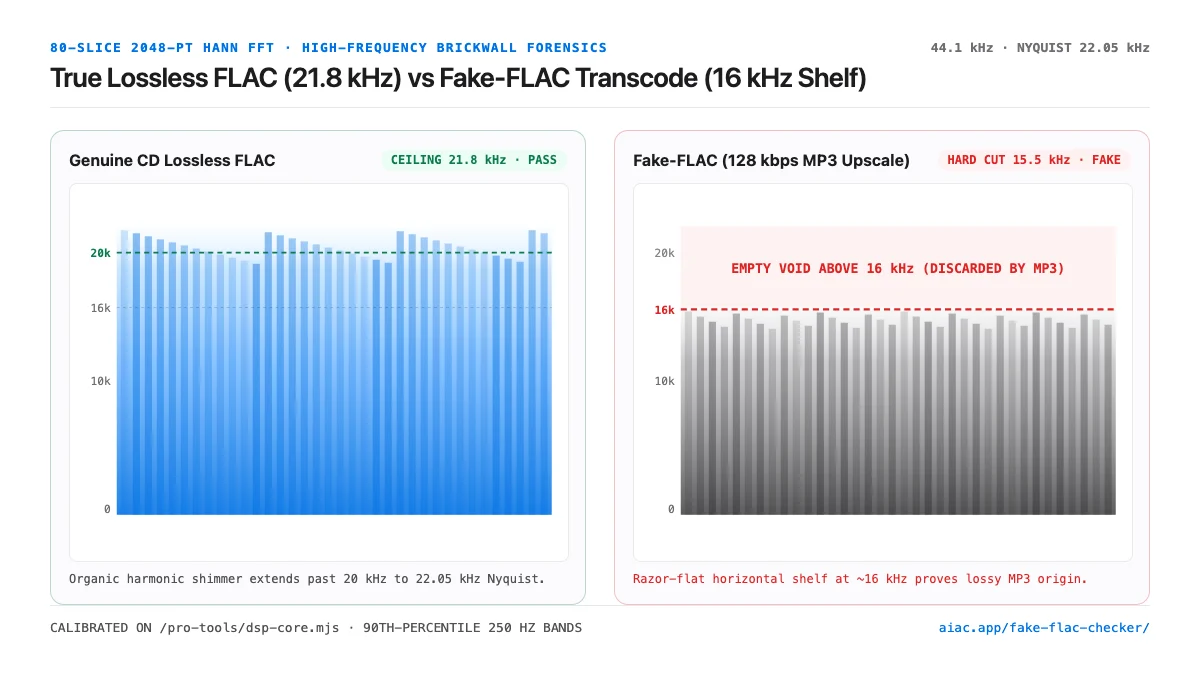
Re-encoding a Fake-FLAC (an upscaled 128 kbps MP3) into a new MP3 compounds psychoacoustic artifacts—creating audible pre-echo smearing on snare hits and metallic phasing on hi-hats. Standard web converters blindly encode whatever you upload without ever warning you about the source spectrum.
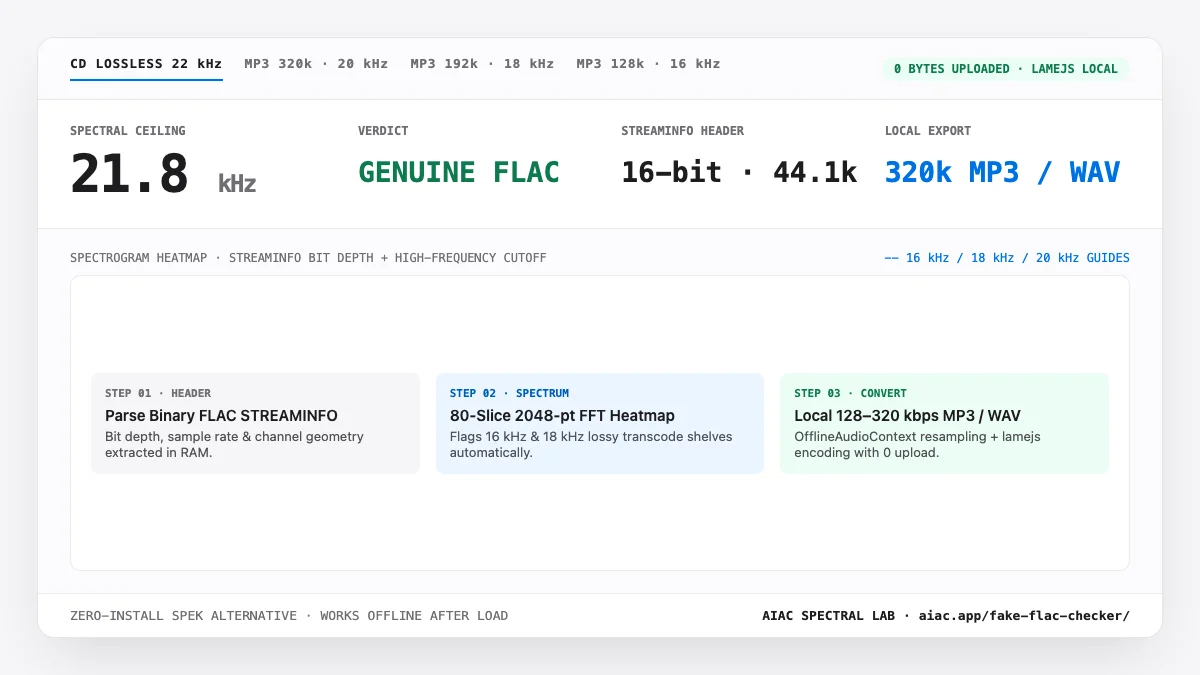
Because AIAC runs an automatic 80-slice FFT spectrogram audit the instant your file loads, you immediately see whether your source carries full 21–22 kHz lossless detail or a suspicious 16 kHz brickwall shelf before committing your bitrate and sample-rate export settings.
INTERACTIVE EXPORT & SOURCE PROFILE INDEX
Select a target export or source verification profile below to jump straight back to the conversion stage:
ACT IV · BITRATE SIZING & PRIVACY AUDIT
Bitrate Sizing Reference & Transcoding Boundaries
Unlike cloud converters that cap file sizes at 50 MB or throttle daily conversions behind sign-in walls, AIAC encodes directly on your CPU via /pro-tools/lame.min.js. Open the reference tables below whenever you need exact file-size math or spectral cutoff thresholds.
Audited Before Export
Automatic 80-slice FFT spectral inspection warns you about 16/18 kHz Fake-FLAC sources before you encode a second lossy generation.
Verify 0 Bytes in DevTools
Open Chrome DevTools → Network → Fetch/XHR before dropping audio: 0 audio bytes leave your tab. Works offline once loaded with zero file quotas.
Single-Track Local RAM
Optimized for fast single-track FLAC/WAV conversion (songs, DJ singles, interviews). For batch-converting 1,000-track album libraries with ID3 cover art, desktop fre:ac or FFmpeg CLI is faster.
| Output Preset | Approx. 4-Min Size | Bandwidth Ceiling | Best Use Case |
|---|---|---|---|
| 320 kbps CBR Stereo | ~9.6 MB | ~20.0–20.5 kHz | Maximum MP3 fidelity for DJ sets, headphones, and car audio |
| 256 kbps CBR Stereo | ~7.7 MB | ~19.5 kHz | High-quality mobile listening with tighter storage footprint |
| 192 kbps CBR Stereo | ~5.8 MB | ~18.5 kHz | Stereo podcasts, web players, and portable music archives |
| 128 kbps CBR Mono | ~3.8 MB | ~16.0 kHz | Long spoken interviews, lectures, and lightweight speech sharing |
| 16-bit PCM WAV | ~42.3 MB | Full Nyquist (22.05+ kHz) | Uncompressed studio handoff, legacy DAWs, and hardware samplers |
| Observed Spectral Ceiling | Typical Source Profile | Recommended Conversion Action |
|---|---|---|
| 20.0 – 22.05+ kHz (Full Range) | True Lossless FLAC / WAV / CD Master | Archive lossless original; export clean 320 kbps MP3 for portable listening |
| 18.0 – 19.5 kHz Shelf | 192–256 kbps transcode or warm master | Check if hard flat line spans full track; avoid dropping below 256k if re-exporting |
| 15.5 – 16.5 kHz Brickwall | Likely Fake-FLAC upscaled from ~128 kbps MP3 | Replace from an authentic lossless master before archiving or club playback |
| Below 15 kHz (Low Sample Rate) | 22.05 / 32 kHz voice capture or vintage tape | Normal for narrowband speech; export 128 kbps Mono for ultra-light sharing |
Verifiable Zero-Upload Privacy & Offline MP3 Encoding
Unreleased album masters, client voiceovers, and paid lossless purchases should never traverse third-party conversion servers. AIAC decodes FLAC via your browser's native Web Audio engine, resamples cleanly with OfflineAudioContext, and encodes MP3 completely locally through /pro-tools/lame.min.js—meaning zero uploads, zero server queues, and 100% offline capability after initial load.
Practical Music Library, DJ & Podcast Export Workflows
Keep your verified FLAC or WAV master untouched on archival storage, and render a 44,100 Hz / 320 kbps Stereo MP3 for cars, phones, and USB playback—or a 128 kbps Mono MP3 to shrink multi-hour interview masters before loading them into AIAC Podcast Studio. Want dedicated lossless forensic analysis without conversion? Open our Online Fake-FLAC Checker, or verify streaming volume targets in the Online LUFS Loudness Meter.
ACT V · QUESTIONS & STUDIO INDEX
Frequently Asked Questions
Does converting FLAC to MP3 here upload my music library?
No. Binary FLAC header inspection, 80-slice FFT spectrogram analysis, OfflineAudioContext sample-rate conversion, lamejs MP3 encoding, and 16-bit WAV export all execute 100% locally inside your browser tab with zero audio bytes uploaded.
Which MP3 bitrate should I choose when converting from FLAC?
Choose 320 kbps CBR Stereo for maximum archival music fidelity (~2.4 MB/min), 256 kbps or 192 kbps for portable devices and stereo podcasts, or 128 kbps Mono (~0.96 MB/min) when shrinking long voice interviews for sharing or transcription.
What is a Fake-FLAC and why check it before converting to MP3?
A Fake-FLAC is a lossy MP3 (typically 128 or 192 kbps) re-saved into a lossless FLAC container. Transcoding a Fake-FLAC back into MP3 creates double lossy compression artifacts; our built-in spectrogram immediately flags 16 kHz and 18 kHz brickwall shelves before you export.
Can I resample 96 kHz or 48 kHz Hi-Res FLAC files to 44.1 kHz?
Yes. Select 44,100 Hz (CD Standard) or 48,000 Hz in the Resample Rate dropdown. Your browser performs band-limited resampling locally via OfflineAudioContext before encoding both your MP3 and 16-bit WAV downloads.
Can a genuine lossless recording ever roll off below 18 kHz?
Yes. Vintage analog tape masters, dark lo-fi synths, and narrowband voice recordings naturally contain minimal energy above 16–18 kHz. Look for a razor-straight horizontal shelf slicing uniformly across the entire track to distinguish a lossy transcode from warm mastering.
Does the converter also generate an uncompressed WAV copy?
Yes. Every local conversion automatically generates both your chosen CBR MP3 file (128–320 kbps) and a clean 16-bit PCM WAV download so you can audition and save whichever format your DAW, car stereo, or media player prefers.
Is there a file size limit or daily conversion cap?
No server upload quotas or paywalls exist because encoding runs purely on your device's CPU and RAM. Standard songs, DJ singles, and hour-long studio podcasts convert smoothly right inside Chrome, Safari, Edge, or Firefox.
Companion Browser-Local Audio Tools
- Online Fake-FLAC Checker Dedicated lossless authenticity forensics guide, Spek comparison, and shareable PNG certificate exporter. →
- MP4 to MP3 Converter Online Extract 128–320 kbps MP3 or 16-bit WAV audio tracks from MP4, MOV, and WebM videos locally. →
- Online LUFS Loudness Meter Audit ITU-R BS.1770-4 Integrated LUFS, LRA & 4× FIR True Peak before streaming delivery. →
- Song Key & BPM Finder Detect musical key, Camelot mixing code, BPM tempo, and 12-pitch chroma energy locally. →